
Verify Bots
Dan Sharp
Posted 28 March, 2017 by Dan Sharp in
Verify Bots
You can automatically verify search engine bots, either when uploading a log file or retrospectively after you have uploaded log files to a project.
When uploading logs, you’ll be given the opportunity to tick the ‘verify bots’ option under the ‘User Agents’ tab.
Search engine bots are often spoofed by other bots or crawlers, including our own SEO Spider software when emulating requests from specific search engine user-agents. Hence, when analysing logs, it’s important to know which events are genuine, and those that can be discounted.

If you have already imported log files, or would like to verify search engine bots retrospectively, then you can do so under the ‘Project > Verify Bots’ menu.

The Log File Analyser will verify all major search engine bots according to their individual guidelines. For Googlebot and Bingbot, the Log File Analyser will perform an extremely fast lookup against their publicly confirmed IP lists (Google IPs, Bing IPs) to confirm they are genuine.
For other bots such as Yandex and Baidu, the Log File Analyser will perform a reverse DNS and verify the matching domain name and then run a forward DNS using the host command to verify it’s the same original requesting IP. This takes significantly longer to verify, so remove these user-agents from your analysis if they are not required.
Bot verification will also be carried out on AI bots that support verification, such as GPTBot and Perplexity bot.
You can see the verification method for each user agent via ‘Settings > User Agents’ and looking at ‘Verification’.

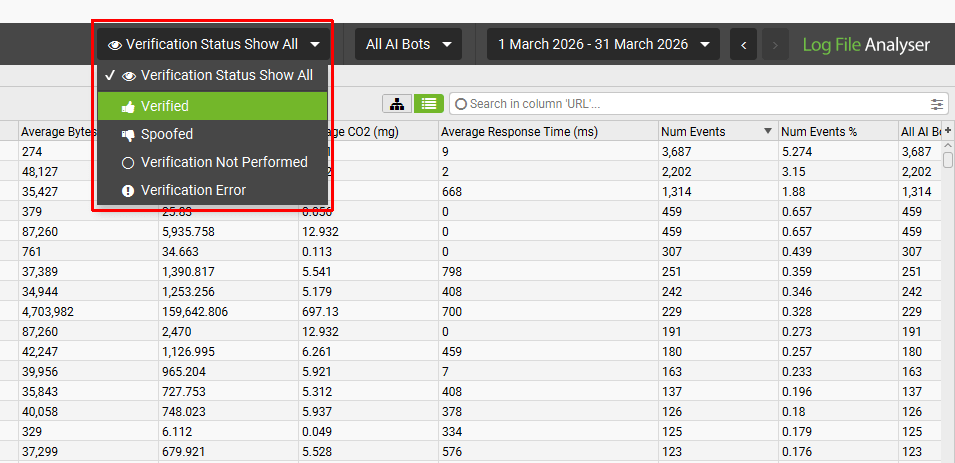
After validation, you can use the ‘verification status’ filter, to view log events that are verified, spoofed or if there are any errors in verification.
Troubleshooting
If you find all events being marked as Spoofed there are a few things to check:
- Is the Remote Host being read? Check the Remote Host value associated with the Events marked as spoofed. To do this click on one of the Events and look at the Remote Host value in the lower window pane. Remote Host is not mandatory, so if this was not available in the imported log file, it won’t be possible to verify the Event.
- The Remote Host has correct looking values: If the Remote Host values are all from a single, or small selection of IPs (Head over to the IP tab to see Unique IPs) then it’s likely these are from a load balancer such as Cloudflare, Sucuri etc. In this case hopefully the real IPs are in your log, they are just in another field that is not being picked up as the IP Address field. Try importing the logs again into a new project, this time choosing ‘Show log fields configuration window on each import’ when importing as shown here and seeing if there are any other fields that can be used for the IP. If the real IP is not available you will need to have the log format adjusted by the site administrator/hosting provider to include the real IP address. Before doing this you could double check that the real IP is not already in the log file. To do this, open up the log file in a text editor and inspect a few of the lines, is there more than 1 IP address on each line? If so please send the first few lines of the log or the Log File Analyser debug logs (Help->Debug->Save Logs) to our support team so we can make sure this isn’t a parsing issue.
- Verify Manually: For Googlebot the Log File Analyser verifies as Google recommends try this yourself, if you get different results please let us know. If not, go ahead and request the real IP is added to the log.
If you find any Events marked as “Verification Error”:
- Select to show “Verification Error” in the top level dropdown, the go to the Events tab, click on an Event and look at the “Verification Status” column. This will tell you why the “Verification Error” has occurred. “Invalid Bot IP” means the DNS lookup failed for the IP address of this event.