
Using the Screaming Frog SEO Spider to Generate Markdown at Scale
Mark Porter
Posted 21 April, 2026 by Mark Porter in Screaming Frog SEO Spider
Using the Screaming Frog SEO Spider to Generate Markdown at Scale
LLMs, RAG pipelines and various AI-powered tools are now a regular part of a lot of SEOs’ workflows, and a common starting point for many of them is getting content out of web pages and into a clean, usable format at scale.
Markdown has emerged as the format of choice for most of these use cases. It’s lightweight, preserves the structure of the page, and is well understood by virtually every LLM out there. The challenge is that web pages are full of stuff you don’t want to carry across with the content. Navigation, cookie banners, ads, sidebars and footers are just a few examples, and stripping them out manually on every page is obviously not going to fly if you’re working with thousands of URLs.
Thankfully, the Screaming Frog SEO Spider can handle this for you using its Custom JavaScript feature. In this guide, we’ll walk through two methods for generating markdown of every page on a site during a crawl, and we’ll share a Python script that takes the SEO Spider’s xlsx export and turns it into individual .md files for use downstream.
Why Markdown?

Before getting into the how, it’s worth briefly covering why this format has become such a common choice within AI workflows.
- It’s much smaller than HTML. HTML is bloated with wrapper divs, inline styles, tracking pixels and all sorts of other code that doesn’t contribute anything useful to the content. Feeding this into an LLM burns through tokens unnecessarily, which directly translates to higher API costs and less room in the context window for the information you actually care about.
- It preserves the structure of the page. Headings, lists, links, bold and italic text are all retained, which makes it significantly easier for an LLM to understand what it’s looking at. It’s also a format that most modern LLMs have been heavily trained on.
- It’s become the de facto format for LLM ingestion. Most embedding pipelines, RAG frameworks and fine-tuning tools either expect markdown or convert to something close to it before chunking. Starting in markdown saves a step.
- It’s easy to read and review. A .md file can be opened in pretty much any text editor. Handy if you’re sense-checking a few thousand exported pages before feeding them into a pipeline.
There are a fair few use cases for content in this format. You might be building a knowledge base for a chatbot on a client’s site, preparing training data for fine-tuning, running competitor analysis through an LLM, getting all examples of a writing style for creating new content, or keeping a clean plain-text archive of a site ahead of a migration. In all of these, getting to clean markdown is the first step.
A Note on Serving Markdown to Bots
Before getting into the how-to, it’s worth flagging an ongoing debate around all of this. Some site owners have started experimenting with serving raw markdown files to LLM crawlers, either alongside their normal HTML or as a replacement, on the basis that it’s cheaper to serve and easier for a bot to parse. Cloudflare even have a one-button solution that automatically converts your HTML to Markdown for requests from agents.
This approach hasn’t necessarily been well received. Earlier this year, Google’s John Mueller called it “a stupid idea” on Bluesky, questioning whether LLM crawlers even recognise a .md file as anything other than a plain text blob.
It’s a fair concern, and we’d largely agree with it. Maintaining a parallel, machine-facing version of your site introduces problems around trust and verification (how does a crawler know the markdown matches what a user would actually see?) as well as the ongoing cost of keeping the two versions in sync.
That’s not what this guide is about though. We’re covering the opposite use case: extracting content that already exists on a site into clean markdown, for use in downstream tooling. Think RAG pipelines over your own content, content audits, training data preparation, migration archives or competitor analysis. A one-off or periodic extraction for a specific purpose, not a live feed served to crawlers.
With that out of the way, on to the workflow.
The Two Approaches
We’ve got two different methods to cover, and both make use of the SEO Spider’s Custom JavaScript feature. We’d recommend starting with the first one, as it requires no configuration and works well on the vast majority of sites. If it misses the mark on something, the second method gives you more control over what’s being extracted.
- Readability.js + Turndown – A single Custom JavaScript snippet that works across most sites with no configuration. Start here.
- Visual Custom Extraction + Turndown – A fallback for when Readability gets it wrong, or when you only want to extract a specific part of the page rather than the whole article.
Both methods require JavaScript rendering to be enabled in the SEO Spider (Configuration > Spider > Rendering > JavaScript), since the Custom JavaScript feature runs against a fully rendered page.
1. Readability.js + Turndown (The Easy Method)
This approach uses two JavaScript libraries to do the heavy lifting:
- Readability.js is Mozilla’s open-source library, and is the same engine that powers Firefox’s Reader View. It analyses the DOM of a page and uses a scoring algorithm to work out which block of markup is the actual content, discarding everything else.
- Turndown is a small JavaScript library that converts HTML to markdown.
Put them together and you’ve got a full HTML-to-markdown pipeline that runs within the SEO Spider’s rendering process. Readability figures out where the content is, and Turndown formats it. There’s nothing to configure per site, and no maintenance to worry about when a site is redesigned.
Setting It Up
Head over to Configuration > Custom > Custom JavaScript in the SEO Spider, and click ‘Add’ to create a new snippet. Give it a sensible name (‘Page Markdown’ works), and paste in the following:
// Markdown extraction using Mozilla Readability + Turndown
//
// Readability.js automatically identifies the main content area (the same
// tech behind Firefox Reader View), then Turndown converts it to markdown.
//
// No content selector needed - Readability figures it out automatically.
//
// SETUP:
// 1. Enable JavaScript Rendering (Config > Spider > Rendering > JavaScript)
// 2. Crawl - markdown appears in the Custom JavaScript column
//
function loadScripts() {
return new Promise((resolve, reject) => {
const readability = document.createElement('script');
readability.src = 'https://unpkg.com/@mozilla/readability/Readability.js';
readability.onload = () => {
const turndown = document.createElement('script');
turndown.src = 'https://unpkg.com/turndown/dist/turndown.js';
turndown.onload = () => resolve();
turndown.onerror = () => reject(new Error('Failed to load Turndown.js'));
document.head.appendChild(turndown);
};
readability.onerror = () => reject(new Error('Failed to load Readability.js'));
document.head.appendChild(readability);
});
}
function extractMarkdown() {
// Readability needs a cloned document as it modifies the DOM
const documentClone = document.cloneNode(true);
const article = new Readability(documentClone).parse();
if (!article || !article.content) {
return 'Readability could not extract content from this page';
}
const turndownService = new TurndownService({
headingStyle: 'atx',
codeBlockStyle: 'fenced',
bulletListMarker: '-'
});
// Only keep images with meaningful alt text
turndownService.addRule('cleanImages', {
filter: 'img',
replacement: function(content, node) {
const alt = node.getAttribute('alt') || '';
const src = node.getAttribute('src') || '';
if (!alt.trim()) return '';
return '';
}
});
// Remove empty links (e.g. image wrappers with no content)
turndownService.addRule('removeEmptyLinks', {
filter: function(node) {
return node.nodeName === 'A' && !node.textContent.trim();
},
replacement: function() {
return '';
}
});
const markdown = turndownService.turndown(article.content);
// Build frontmatter from Readability metadata
const frontmatter = [
'---',
article.title ? 'title: "' + article.title.replace(/"/g, '\\"') + '"' : null,
article.byline ? 'author: "' + article.byline.replace(/"/g, '\\"') + '"' : null,
article.siteName ? 'site: "' + article.siteName.replace(/"/g, '\\"') + '"' : null,
article.excerpt ? 'excerpt: "' + article.excerpt.replace(/"/g, '\\"') + '"' : null,
'---'
].filter(Boolean).join('\n');
return frontmatter + '\n\n' + markdown.replace(/\n{3,}/g, '\n\n').trim();
}
return loadScripts()
.then(() => seoSpider.data(extractMarkdown()))
.catch(error => seoSpider.error(error));
There’s a bit more going on here than just the core Readability-and-Turndown steps, so it’s worth briefly walking through what the snippet does:
- Loads the two libraries from a CDN. Readability.js and Turndown are injected into the page at crawl time, so there’s nothing to host or install.
- Runs Readability against a clone of the page. Readability modifies the DOM as it scores elements, so we clone first to avoid affecting the rest of the snippet.
- Adds a couple of Turndown rules. Images without meaningful alt text are dropped (they rarely add value to an LLM), and empty link wrappers are removed. These are small tweaks that keep the output cleaner.
- Builds a YAML frontmatter block using the metadata Readability extracts, including the page title, author/byline, site name and excerpt. This is handy downstream, as most tools that consume markdown will parse frontmatter automatically.
- Returns the result via seoSpider.data(), which writes it out to a dedicated column in the crawl data. Any errors are caught and passed through seoSpider.error() so failures show up clearly in the crawl.
Running the Crawl
With JavaScript rendering enabled and the snippet saved, go ahead and start your crawl as normal. Once it’s underway, click over to the Custom JavaScript tab and you’ll see a new column for the snippet, containing the generated markdown for each page.

A few things to be aware of:
- Readability needs enough content to work with. Pages like login forms, thin category stubs or contact pages will often return nothing, as there’s no article to actually extract. This is usually the correct behaviour.
- Non-content elements are dropped automatically. Navigation, related posts widgets, share buttons and similar bits are scored low and ignored without needing to be told. It’s one of the main reasons Readability works so well across different site templates.
- JavaScript rendering is slower than standard crawling. This is a limitation of JS rendering itself, not the snippet. For larger sites, consider crawling in segments or adjusting your rendering settings to suit.
If you’re working with a clean URL structure, consider leveraging the Include feature, for example:
https://www.screamingfrog.co.uk/blog/
\.js
This would just crawl all the content on the Screaming Frog blog.
Once the crawl finishes, export either the Custom JavaScript tab or the Internal > All tab as xlsx and you’re ready for the next step.
2. Visual Custom Extraction + Turndown (For More Control)
Readability is good, but it isn’t perfect. On sites with unusual layouts, for example documentation hubs with heavy sidebars, e-commerce PDPs with lots of supporting content, or certain single-page app setups, it can occasionally grab the wrong section or miss part of the content. It also isn’t much help if you only want a specific part of the page, such as the product description, the review section or the Q&A block.
For these scenarios, you can tell the SEO Spider exactly where to look using Custom Extraction, then feed that section through Turndown.
Finding the Right Selector
Visual Custom Extraction lets you click on a rendered page inside the SEO Spider, and it’ll automatically generate a CSS selector or XPath for whatever you clicked on. It’s by far the easiest way to get a reliable selector without having to dig around in browser dev tools.
- Go to Configuration > Custom > Custom Extraction and click ‘Add’.
- Select ‘Visual Extractor’ (Globe icon) and enter a representative URL. We’d recommend a typical article or product page rather than the homepage, as we want a template that contains the main content area.
- When the page loads, click on the main content of the page. The SEO Spider will automatically generate a CSS selector.
- Check the preview on the right. If it’s picking up the sidebar, author bio or other bits you don’t want, try clicking a more specific element instead.
- Set the extraction type to ‘Inner HTML’.

Of course, if you’re well-versed in CSS Selectors and XPath, you can likely skip this step and just get what you need from the browser Inspect pane.
Once you’re happy with what’s being extracted, copy the selector. We’ll drop it straight into the JS snippet below.
The Snippet
This snippet uses Turndown, but not Readability. Instead, it takes the CSS selector you have, pulls the inner HTML, strips out a list of elements that tend not to be part of the main content, and then feeds the rest into Turndown.
// Markdown extraction using Visual Custom Extraction + Turndown
//
// Use this when you want precise control over what content gets extracted.
//
// SETUP:
// 1. Use Visual Custom Extraction (CSS Selector mode) to click your content area
// 2. Copy the CSS selector SF generates and paste it below as CONTENT_SELECTOR
// 3. Test on a few pages - if unwanted elements appear, add their selectors
// to STRIP_SELECTORS below
// 4. Enable JavaScript Rendering (Config > Spider > Rendering > JavaScript)
// 5. Crawl - markdown appears in the Custom JavaScript column
//
// Paste your CSS selector from Visual Custom Extraction here
const CONTENT_SELECTOR = "YOUR_CSS_SELECTOR_HERE";
// Add any site-specific elements you want to strip out
// These are common defaults - inspect your pages and add to this list as needed
const STRIP_SELECTORS = [
'nav', 'footer', 'header', 'aside',
'script', 'style', 'noscript', 'iframe', 'svg',
'.sidebar', '.navigation', '.menu',
'.cookie-banner', '.social-share', '.comments',
'.related-posts', '.breadcrumb', '.share-buttons'
// Add your own below, e.g.:
// '.author-bio',
// '.post-meta',
// '#newsletter-signup'
];
function loadTurndown() {
return new Promise((resolve, reject) => {
const script = document.createElement('script');
script.src = 'https://unpkg.com/turndown/dist/turndown.js';
script.onload = () => resolve();
script.onerror = () => reject(new Error('Failed to load Turndown.js'));
document.head.appendChild(script);
});
}
function extractMarkdown() {
const content = document.querySelector(CONTENT_SELECTOR);
if (!content) {
return 'No content found for selector: ' + CONTENT_SELECTOR;
}
// Clone so we don't modify the live DOM
const clone = content.cloneNode(true);
// Strip non-content elements
STRIP_SELECTORS.forEach(selector => {
clone.querySelectorAll(selector).forEach(el => el.remove());
});
const turndownService = new TurndownService({
headingStyle: 'atx',
codeBlockStyle: 'fenced',
bulletListMarker: '-'
});
// Only keep images with meaningful alt text
turndownService.addRule('cleanImages', {
filter: 'img',
replacement: function(content, node) {
const alt = node.getAttribute('alt') || '';
const src = node.getAttribute('src') || '';
if (!alt.trim()) return '';
return '';
}
});
// Remove empty links (e.g. image wrappers with no content)
turndownService.addRule('removeEmptyLinks', {
filter: function(node) {
return node.nodeName === 'A' && !node.textContent.trim();
},
replacement: function() {
return '';
}
});
const markdown = turndownService.turndown(clone.innerHTML);
// Clean up excessive blank lines
return markdown.replace(/\n{3,}/g, '\n\n').trim();
}
return loadTurndown()
.then(() => seoSpider.data(extractMarkdown()))
.catch(error => seoSpider.error(error));
Two things to edit each time you use this:
- CONTENT_SELECTOR – paste in whatever selector Visual Custom Extraction gave you.
- STRIP_SELECTORS – the defaults cover the usual suspects, but every site has its own quirks. It’s worth spending a minute looking at a rendered page and adding anything obvious, like a floating ‘book a demo’ bar, an author bio box or an in-article email capture form.
When to Use This Instead
The trade-off here is setup time versus precision. You’re configuring a selector (and possibly a few strip selectors) per site, but in return you know exactly what’s being extracted. It’s usually the right choice when:
- Readability is getting it wrong. Run the first method, spot-check a few outputs, and if several pages are coming back with the wrong content, switch over.
- You only want a specific section. For instance, the review content on a product page, or the Q&A block on a FAQ page.
- The site has a very consistent template. A large blog or documentation site where the content always sits in the same wrapper is where a selector-based approach shines.
3. Bulk Exporting Markdown Files With Python
Once the crawl has finished, export the Custom JavaScript tab from the SEO Spider as an .xlsx file. This gives you every URL alongside its corresponding markdown content, which is fine for a quick look, but most downstream tools like vector databases, fine-tuning pipelines and static site generators will want one file per page rather than one big spreadsheet.
The following Python script handles that. It reads the .xlsx export, takes the URL and markdown content from each row, and saves each page as an individual .md file. Filenames are built from the URL path, so something like screamingfrog.co.uk/blog/design-trends-shaping-2026/ becomes blog__design-trends-shaping-2026.md. The source URL is added as an HTML comment at the top of each file for reference.
import pandas as pd
import os
import re
from urllib.parse import urlparse

# Path to your Screaming Frog export
EXPORT_FILE = 'custom_javascript_md_.xlsx'

# Output directory for markdown files
OUTPUT_DIR = 'markdown_output'


def url_to_filename(url):
    """Convert a URL to a filename. Slashes become double underscores."""
    parsed = urlparse(url)
    path = parsed.path.strip('/')
    if not path:
        return 'index.md'
    filename = path.replace('/', '__')
    filename = re.sub(r'[^\w\-.]', '_', filename)
    filename = re.sub(r'\.(html?|php|aspx?)$', '', filename)
    return filename + '.md'


def main():
    os.makedirs(OUTPUT_DIR, exist_ok=True)

    df = pd.read_excel(EXPORT_FILE)

    # First column is always Address, markdown content is always column D onwards
    url_col = df.columns[0]
    md_col = df.columns[3]

    count = 0
    skipped = 0

    for _, row in df.iterrows():
        url = str(row[url_col]).strip()
        markdown = str(row[md_col]).strip()

        if not markdown or markdown == 'nan' or not url:
            skipped += 1
            continue

        filename = url_to_filename(url)
        filepath = os.path.join(OUTPUT_DIR, filename)

        with open(filepath, 'w', encoding='utf-8') as f:
            f.write(f'<!-- Source: {url} -->\n\n{markdown}')

        count += 1

    print(f'Created {count} markdown files in /{OUTPUT_DIR}')
    if skipped:
        print(f'Skipped {skipped} rows (empty content or URL)')


if __name__ == '__main__':
    main()
To use it:
- Install Python if you don’t already have it, available from python.org.
- Install the two required dependencies with pip install pandas openpyxl.
- Save the script as something like export_md.py.
- Put it in the same folder as your SF export.
- Update the filename on line 7 to match the name of your export.
- Run it with python export_md.py.
You’ll end up with a markdown_output folder containing all your .md files, ready to feed into whatever you’re using them for. LangChain and LlamaIndex document loaders will read them directly, most vector database ingestion tools accept a directory of markdown, and if you just want to grep through the content, tools like ripgrep work fine against the output.
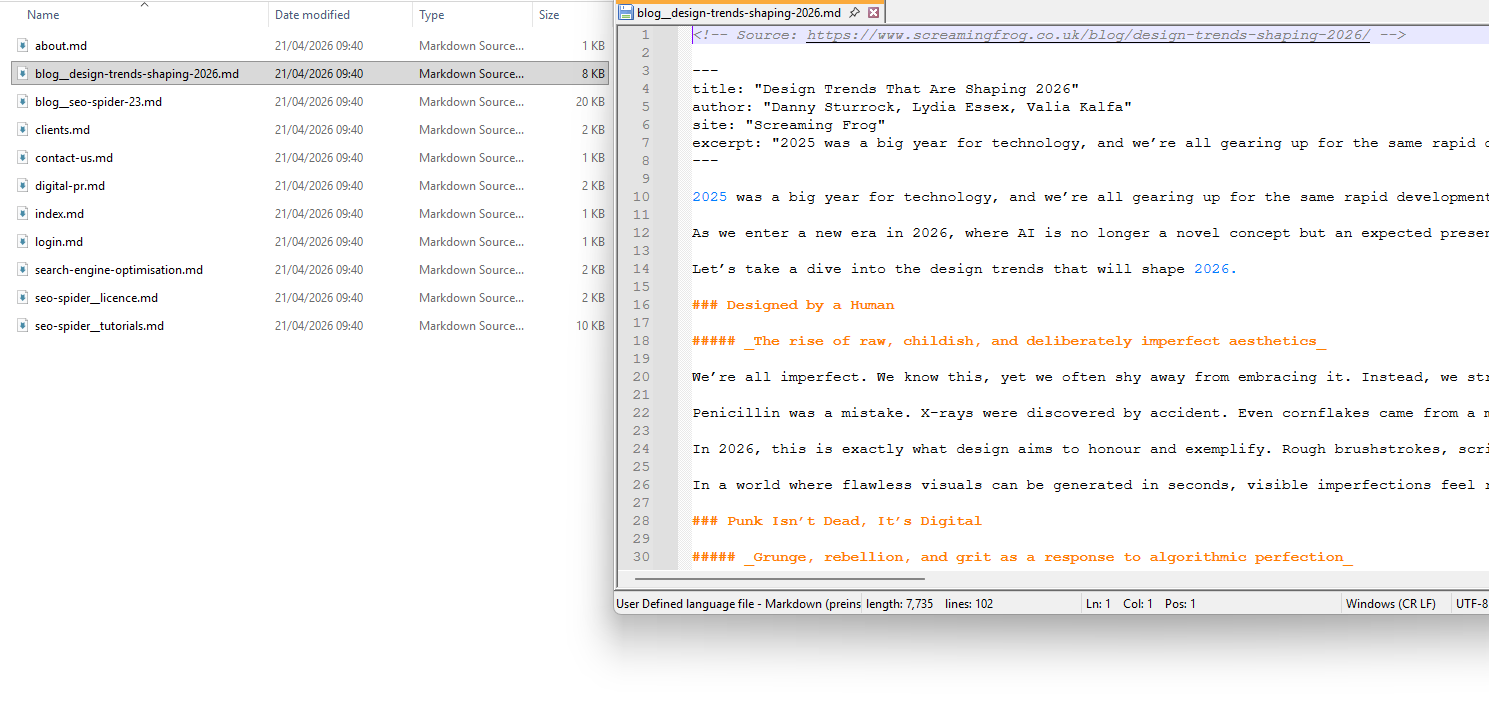
A couple of things worth being aware of:
- Empty rows are skipped. If Readability couldn’t extract content from a particular page, that row is skipped rather than writing out an empty file. The script will also print the total number of rows it skipped when it finishes.
- Column positions are hard-coded. The script assumes the URL is in the first column and the markdown content in column D, which matches the default SF Custom JavaScript export. If you’ve added other Custom JavaScript snippets or extractions that shift things around, adjust the md_col line to match.
Final Thoughts
That covers the full workflow. One crawl, one export, one folder of markdown files ready for whatever you’re feeding them into. For most sites, the first approach (Readability.js + Turndown) will give you a solid result with no configuration whatsoever. Where it falls short, the second approach gives you the control to pinpoint exactly what gets extracted.
The same pipeline isn’t just useful for LLM-related tasks. Content audits, migration preparation, competitor analysis and keeping a clean text archive of a site are all valid use cases. Once your Custom JavaScript snippets are saved in the SEO Spider, running the same process on a new site takes a matter of minutes.
If you come up with any useful additions or tweaks to the snippets (particularly the STRIP_SELECTORS array for the second method), let us know in the comments.




This is an awesome method for extracting the markdown format from each page. In the first point, could you also add a note to enable JavaScript rendering, as people might easily miss that step? I missed it too.
Very useful method! What could be a workaround when trying to export the ‘Custom JavaScript’ tab but for some rows in Excel it says “Data too large for file format” and when trying to copy-paste the content from ScreamingFrog to Excel it says “You can’t use more than 8192 characters in a Microsoft Excel formula.”
This is a very helpful method to get the marktdown! thanks for the insights guys