
Projects
Dan Sharp
Posted 6 April, 2016 by Dan Sharp in
Projects
A new project is created when you import a log file. In the free version of the tool, you’re limited to a single project. In the paid version, it’s unlimited.
We recommend creating separate projects for each website and adding log files to the project over a period of time. However, how you use projects is up to you!
You’re able to open new or existing projects within the Screaming Frog Log File Analyser at anytime.
Setting Up A New Project
To open a new project, simply click on the ‘New’ button, or ‘Project > New’ within the top level menu. You’ll then be requested to name the project and choose the timezone. You can rename projects at a later date as well.

There are two additional options that are disabled by default –
- Show log fields configuration window on each import – While the LFA can automatically parse virtually all log formats, this is useful when log files are extremely customised, or a required field is missing. You’re able to preview what’s in the log file and which log file components have been selected against which fields in the tool, and adjust if necessary. Read more in our importing log files section.
- Does your website run on green energy? – The LFA will perform a carbon footprint calculation for log files. The CO2.js library estimates the emissions of log events for every URL in a log file. For accurate CO2 calculations, enable this option if the site is hosted using green energy.
The ‘User Agents’ configuration allows you to select the user-agents analysed in the project. The Log File Analyser will by default import data for the following search bot user-agent strings –
- Googlebot
- Googlebot Smartphone
- Bingbot (Both Desktop & Smartphone together)
- Yandex
- Baidu
However, you can choose to unselect or add additional user-agents to these.
The user-agent filter groupings make it easy to filter for the bots you wish to upload and analyse in projects, for example adding AI bots into the analysis.

By default the Log File Analyser only analyses search engine bot events, so the ‘Filter User Agents (Improves Performance)’ box is ticked.
We recommend only selecting user-agents you’re interested in analysing, as it massively improves performance and reduces time required to only have to store and compile specific search bots, rather than all event data from users and browsers.

There are a couple of additional settings you can select –
- Include Unknown User Agents – Enabling this option means any user agents that are not known (defined by your full ‘Available’ list of user agents) will be included in the analysis. This can be useful for analysing bots that are crawling your website, that are not browsers, or known search or AI bots that you may wish analyse further or block.
- Verify Bots – This will verify that search bots and AI bots that support verification will be verified as genuine, and not spoofed. This will make the initial log file import take longer, or alternatively you can perform this after importing.
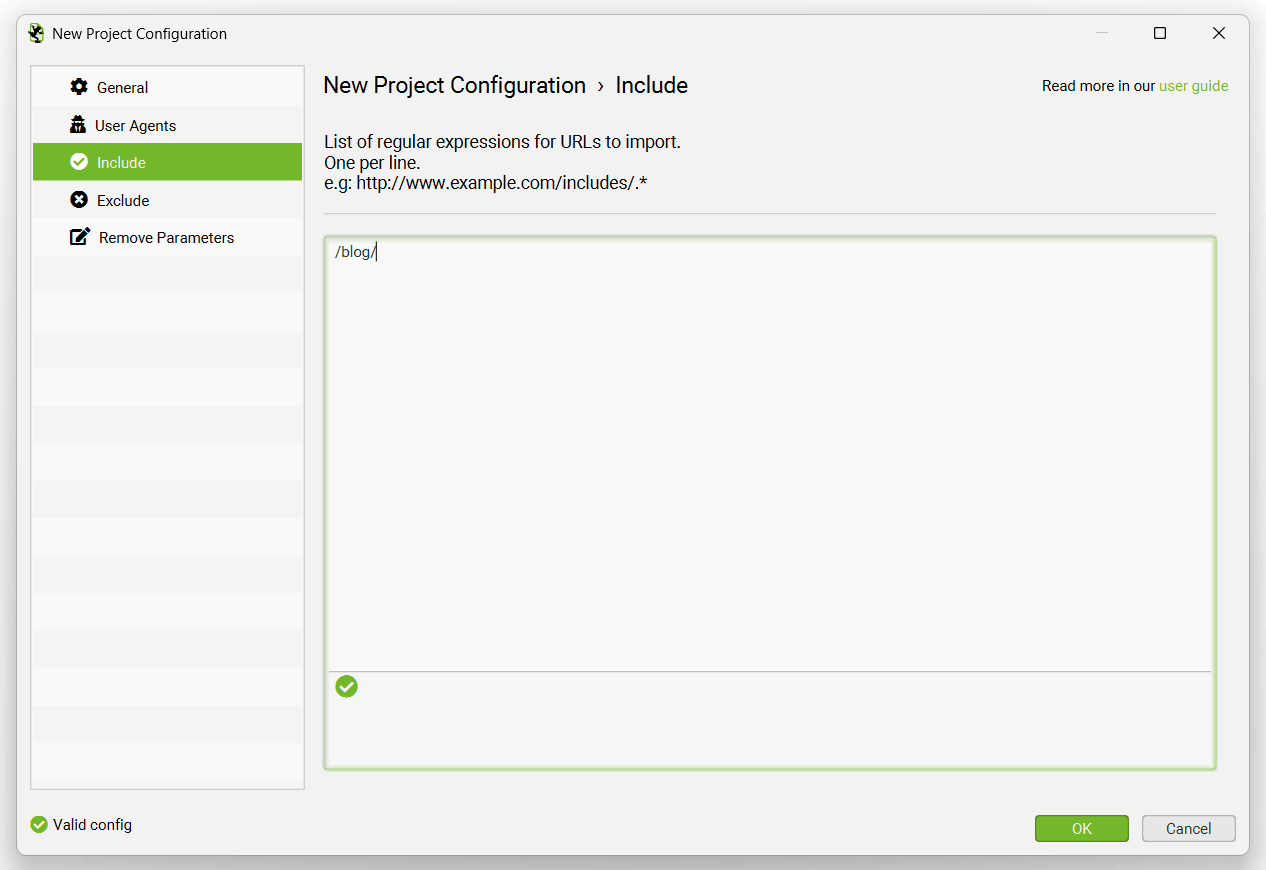
The ‘Include’ tab allows you to supply a list of regular expressions for URLs to import into a project. So if you only wanted to analyse certain domains, or paths, like the /blog/, or /products/ pages on a huge site, then you can now do that to save time and resource – and more granular analysis.
If you want to analyse every URL, you can simply ignore this tab and leave it blank.
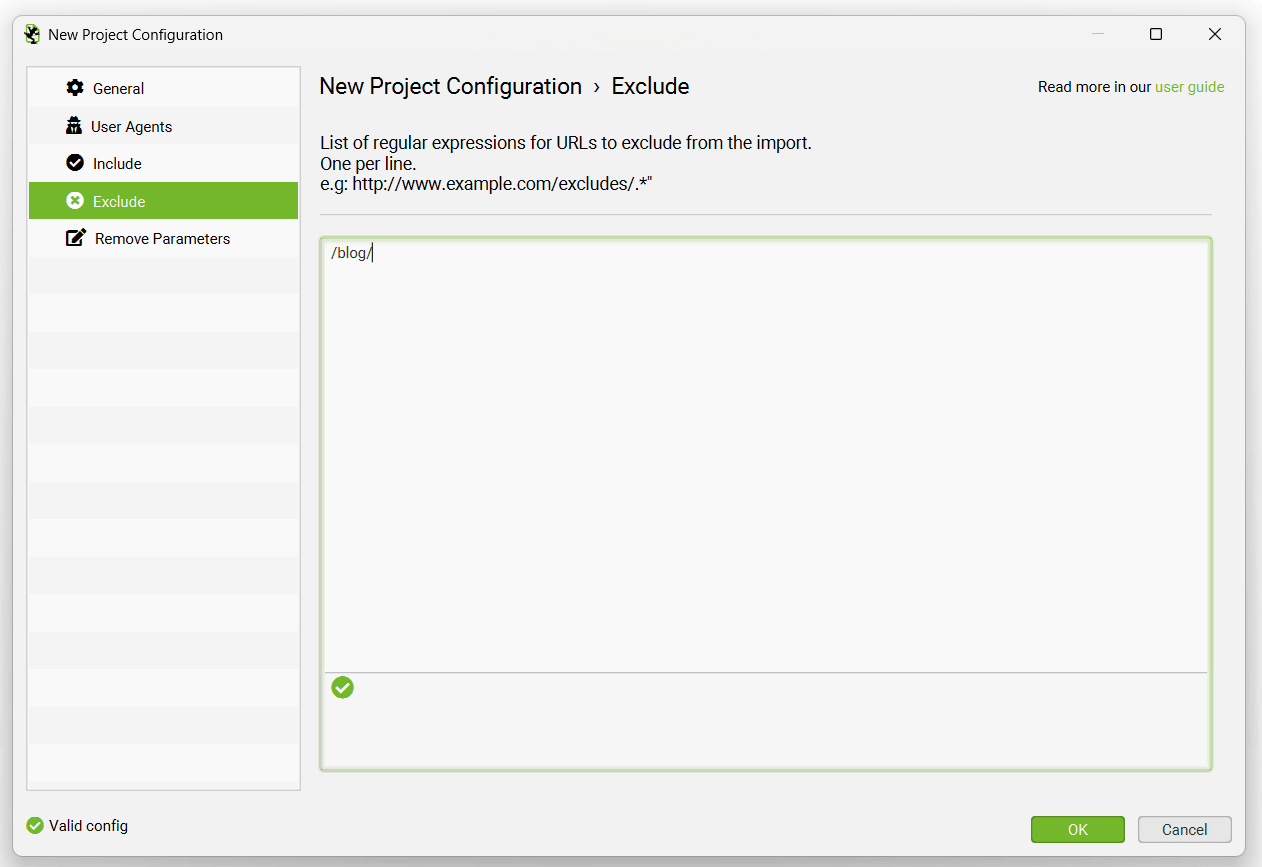
The ‘Exclude’ tab allows you to supply a list of regular expressions for URLs to exclude from importing into a project to help save time and resource.
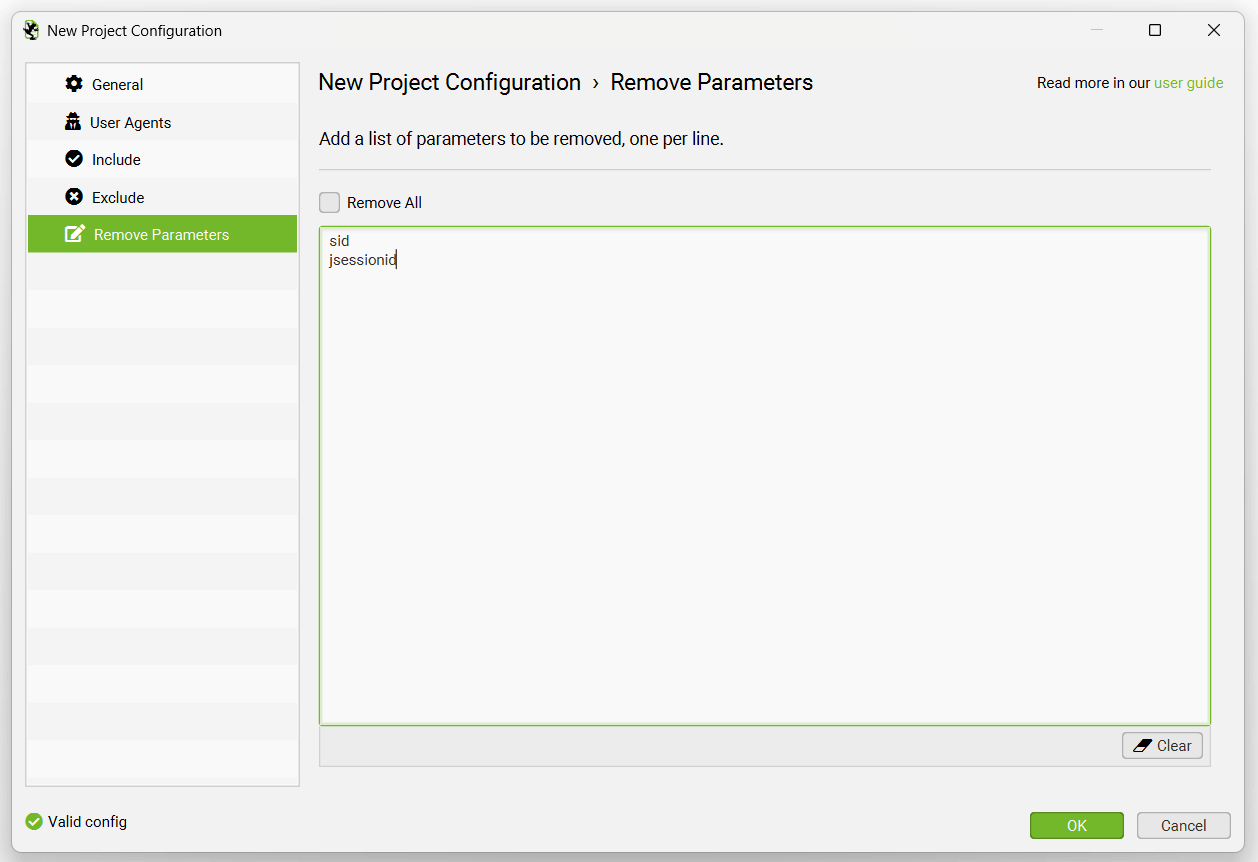
The ‘Remove Parameters’ tab allows you to input a list of URL parameters to be stripped from URLs in the log file for analysis.
If the URLs in the log file are relative, rather than absolute, you’ll also be asked to supply the full site URL, including protocol (HTTP or HTTPS). Just enter the URL in the window.
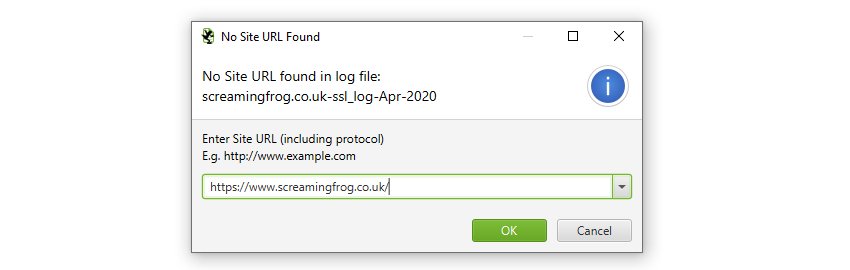
Generally HTTP and HTTPS log files will be separate, so this enables you to upload them separately with the correct protocol and have HTTP and HTTPS URLs within the same project for analysis.
We recommend (where possible) that absolute URLs are configured in log files to improve accuracy of data. When URLs are relative, we have to combine and aggregate the www. and non www. event data of URLs.
That’s it, when you have finished clicking ‘OK’, the Log File Analyser will create a new project. You can then simply import your log files by dragging and dropping them into the interface.
Open An Existing Project
To open an existing project, click on the ‘Open’ button, or ‘Project > Open’ within the top level menu.
Additionally, you can use ‘Project > Open > Recent’ to choose from a list of recently opened projects.
Deleting A Project
To delete an existing project, click on ‘Project > Delete’ within the top level menu when you’re on the chosen project.
Alternatively, you can click on ‘Project > Open’ within the top level menu, highlight the project you wish to delete and press the ‘Delete’ button at the bottom of the window.
Exporting An Existing Project
To export an existing project, click ‘File > Export’ within the top level menu. This will save the project as a .logfileanalyser file. This can be archived, or shared with a colleague to be opened again in the Log File Analyser.
Importing An Existing Project
To import a project not already stored as a project within the Log File Analyser (‘File > Open’), click ‘File > Import Project’ within the top level menu.
Select the .logfileanalyser file and it will upload the project, so it can be opened via ‘File > Open’ and analysed.