
SEO Spider
Simulating User Interactions with Custom JavaScript
Simulating User Interactions with Custom JavaScript
Both Googlebot and the SEO Spider can execute JavaScript and process any updates this makes to a page’s HTML. This is limited to the rendered HTML before any user interactions have been made.
Sometimes you might want to collect data from the SEO Spider on a page that cannot be found in the HTML until after some kind of user interaction. This could be something like the following:
- Content behind an expandable section that is only populated after the element is clicked on.
- Load more / infinite scroll pagination setups.
- SPAs where the URL does not change but the content is updated.
If you want Google to see any content changes, then steps need to be taken to ensure this is crawlable:
- Pagination, incremental page loading, and their impact on Google Search
- Follow best practices for web components
However, if you only want this data for the purposes of an SEO Spider crawl / report, then this can be achieved by utilising the Custom JavaScript function to simulate user interactions with the page.
Some common interactions you may want to perform are:
Click Element
We have encountered multiple cases where the links in a site’s main navigation cannot be found in the page DOM (rendered HTML) until the menu is interacted with.
If the menu needs a click to be expanded, then this can be simulated. There is more than one way to do this but the following is relatively simple and versatile:
document.querySelector("CSS Selector").click();
Where ‘CSS Selector’ should be a unique CSS selector of the element you want to click.
Sometimes inserting a delay before the simulated user interaction is necessary. The following introduces a 500ms wait before the click:
setTimeout(() => {

 document.querySelector("CSS Selector").click();

}, 500);
To run this code, JavaScript Rendering must be enabled:
Configuration > Spider > Rendering > JavaScript
We recommend using a Desktop Window Size (avoids differences in the DOM that may exist with a mobile view and makes it easier to check whether the interaction has occurred).

The code can be added under ‘Configuration > Custom > Custom JavaScript’.

- Use the ‘Add’ option.
- Set as ‘Action’.
- Enter the JavaScript.
The ‘Enter JavaScript Snippet’ text box can be expanded so this can be seen in more detail:

To test whether the desired interaction will occur, the ‘JavaScript Tester’ function can be used. This can be found to the right of the window when the ‘Enter JavaScript Snippet’ text box is expanded.
After entering the code in this window, click the globe symbol then enter the relevant URL and click the ‘Test’ button. This will load a browser window where the custom JavaScript is executed on the page:

The crawl can then be run.
Whether this is functioning can be confirmed in the final crawl by viewing the ‘Rendered Page’ tab in the lower window:

This example simply illustrates a user interaction, not a site that has content hidden behind a user interaction.
The HTML of the page the Spider processed can also be checked to see if the desired content / links can now be seen. This requires HTML to be stored:
‘Configuration > Spider > Extraction > Store Rendered HTML’
This approach can also be used to carry out actions like accepting cookie banners, although there are other ways to do this with the SEO Spider.
(Note: simulating the action of clicking an <a href> link will load that page and result in a perceived JS redirect in the SEO Spider.)
Multiple Clicks
This same basic JavaScript can be modified to loop, something which can be used with a ‘load more’ pagination setup. The following will click the same element every 500ms five times before stopping:
for (let step = 0; step < 5; step++) {

 setTimeout(() => {

  document.querySelector("CSS Selector").click();

 }, 500 * (step + 1));

}
Due to long pages, it may not always be clear if it is working as expected from the screenshot. As well as comparing the code / link results, setting up a Custom Extraction to count the instances of an element can confirm whether the custom JavaScript is functioning as desired.
In this case we can see it works by comparing the default h5 count to when the same crawl is run using the custom JavaScript function:


Mouse Hover
Similar to a menu being reliant on a click, some may instead only look for a hover (mouseover event).
This can be achieved with the following custom JavaScript; the ‘CSS Selector’ again needs to be updated with the unique CSS selector of the menu element. This also utilises a delay before the event:
const targetElement = document.querySelector('CSS Selector');


const hoverEvent = new MouseEvent('mouseover', {

 view: window,

 bubbles: true,

 cancelable: true

});


setTimeout(() => {

 if (targetElement) {

  targetElement.dispatchEvent(hoverEvent);

 }

}, 500);

This triggers a JS mouseover event and won’t trigger menus only using CSS, although these would not be reliant on JS to populate their content.
Scrolling
Another user event you may want to configure is scrolling, if the site uses an infinite scroll setup or lazy loads other elements.
This is built into the Spider’s custom JavaScript library:
Configuration > Custom > Custom JavaScript
+ Add from Library > System > Scroll page
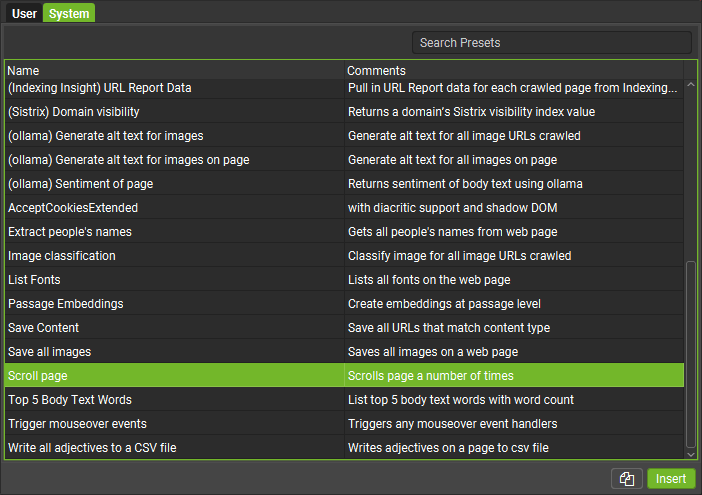
The number of times to scroll and how long to wait between can be adjusted by modifying the following lines:
const numberOfTimesToScroll = 10;

const scrollWaitMillis = 200;
There are limitations to these interactions, depending on the site’s precise setup – a pagination setup that changes the page content but doesn’t retain the previous listings would mean only a single page’s listings are ever seen.
There will be a limit on how much a page can be scrolled / ‘load more’ clicked before the amount of HTML becomes unmanageable.
Summary
These are a few basic simulated interactions we have found useful in a few edge cases where the site lacked an SEO-friendly setup for some elements that needed to be reported on.
There are likely many more that can be accounted for using the Custom JavaScript feature.
Get in touch with our support team with any queries.