
MCP Server
Dan Sharp
Posted 17 March, 2026 by Dan Sharp in
MCP Server
You can run crawls, analyse, export and manipulate data using the SEO Spider and node.js inside Claude, LM Studio and other AI assistants using the Screaming Frog SEO Spider MCP.
This is a paid licence feature only. It will not work in the free version.
Quick Start
If you want to set up quickly and test, then read on.
- Ensure you have the latest version (24) of SEO Spider installed. The MCP integration requires it to be in database storage mode (‘File > Settings > Storage Mode’), which is the default.
- The easiest way is to use Claude Desktop and follow the Claude Desktop Setup instructions below for STDIO mode using the MCP Extension to install it.
- Connect, then try some examples prompts suggested below, such as starting a crawl or exporting data from an existing crawl.
Introduction
The SEO Spider can operate as an MCP Server, exposing a wide range of crawl data to large language models (LLMs). This includes reports, bulk exports, and other crawl-related datasets.
In addition to data access tools, the server provides two powerful groups of tools:
Node Tools
Note: the Node tools are disabled by default, you will need to enable it in the MCP Server config (‘File > Settings > MCP Server’).
Filesystem Access Tools
Because these tools are built in, there is no need to configure additional MCP servers for scripting or filesystem access. This makes the SEO Spider MCP server largely self-contained and easier to manage.
All scripts, tool outputs, and installed packages are stored in a configurable directory, which you can define under ‘Settings > MCP Server’.
The full list of tools available to the LLM is detailed in our MCP API list below.
Running the Server
There are a number of MCP Clients that exist that can use the SEO Spider as an MCP Server. We have setups for two of these:
Claude Desktop works well but can run out of tokens quickly unless you are on the paid plan. LM Studio combined with local models is a good free alternative. We have setup guides for both below.
Claude Desktop Setup
The SEO Spider MCP server can be run in two different modes.
1. STDIO Server
This is the only mode that Claude desktop supports natively. However, you can get it to accept Streamable HTTP Servers which is documented below.
In STDIO mode:
- The client (i.e. Claude Desktop) launches the Spider in CLI mode. The UI will not be visible to the user, it will run headless.
- Communication happens via standard input/output streams.
- The user must explicitly prompt the client to load a crawl.
- You can get the client to list the most recent crawls or reference an existing database crawl by using its crawl ID, which can be found by right-clicking the crawl in the ‘File > Crawls’ dialog.
2. Streamable HTTP Server
- The SEO Spider is started in UI mode and all data is visible to the user. The MCP Server can be started and stopped via the MCP top level menu.
- Actions such as opening a crawl via the MCP will be visible in the UI to the user.
- The SEO Spider exposes the MCP Server URL.
You can select which method you wish to use based upon the pros and cons above.
If you like seeing the UI and reviewing the data being analysed at the same time as Claude, then Streamable is recommended.
Licencing & Privacy: By configuring an MCP server, you must ensure the software is not accessed or interacted with by anyone other than the licensed user. You are responsible for the privacy of all data sent to, or accessed via the MCP server.
How to Add the SEO Spider as an MCP Server to Claude Desktop
There are two ways to add the SEO Spider as an MCP Server to Claude desktop, depending on whether you wish to use STDIO, or Streamable mode.
STDIO Mode Setup
You need to enable node.js and install the MCP extension to use Claude desktop in STDIO mode.
1) Enable Node.js
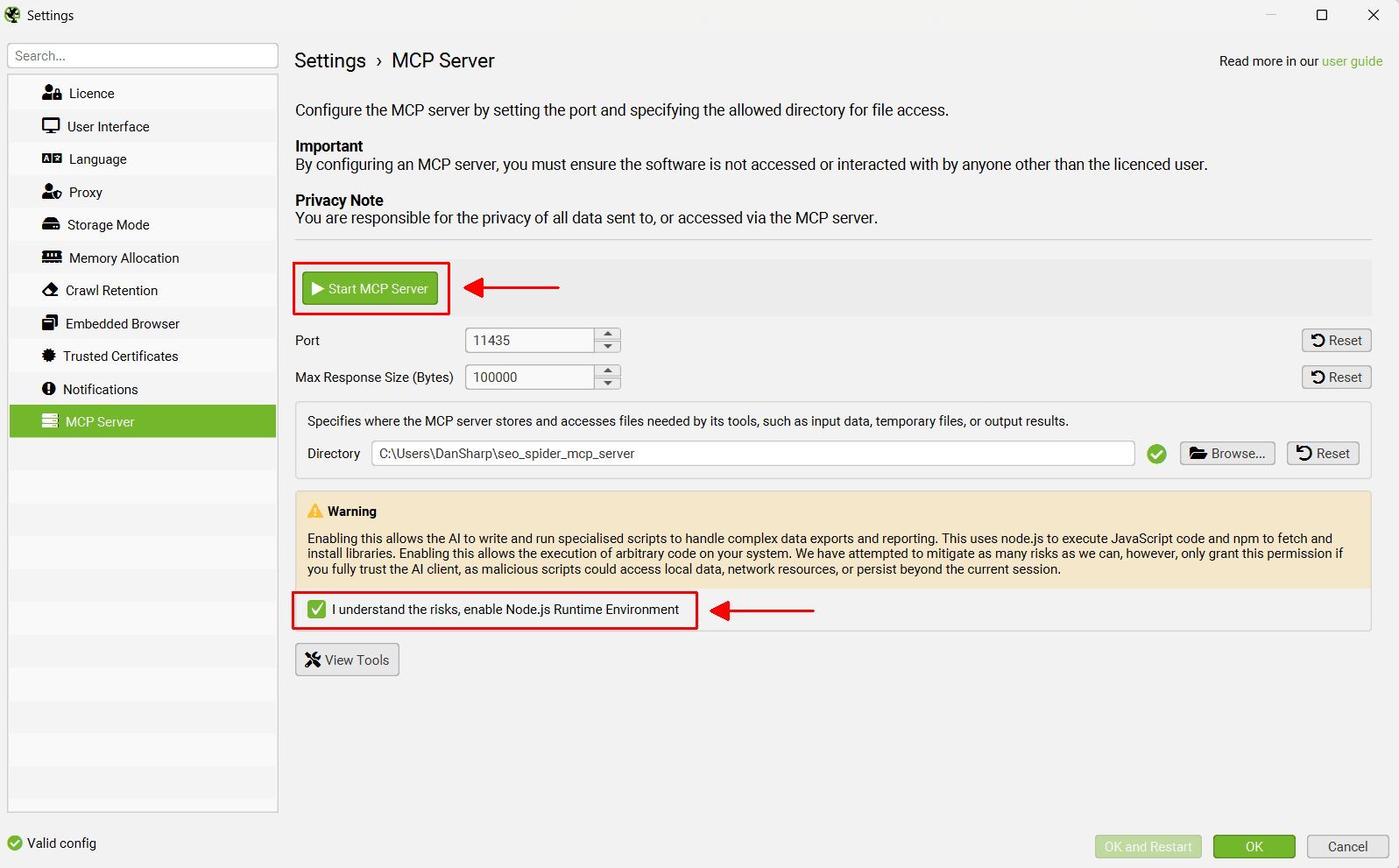
Click ‘File > Settings > MCP Server’ in the SEO Spider and accept and enable the Node.js runtime environment to use the SEO Spider MCP.
The Node.js setting allows the LLM to install any required Node packages on demand and execute custom node.js scripts to manage and manipulate data. As they are built-in and self contained, additional servers are not required for scripting or file access.

2) Install the MCP Extension
Download the STDIO MCP extension via the button below.
When you have downloaded the MCP extension, open up Claude Desktop, navigate to ‘Settings > Extensions’ and click ‘Advanced Settings’.

Then click on ‘Install Extension’, and select the downloaded ‘spider-mcp.mcpb’ file.

When selected, click ‘Install’.
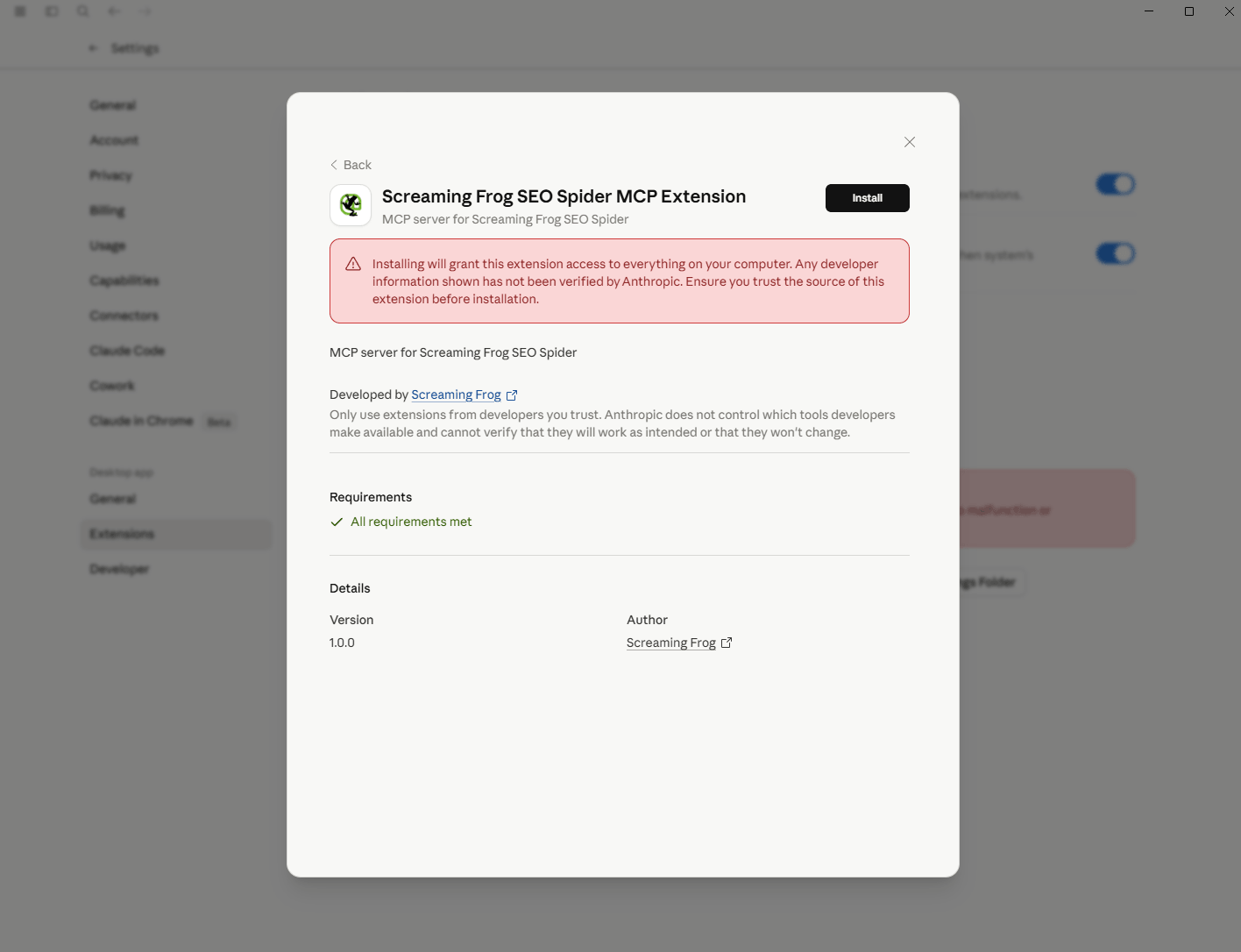
The SEO Spider MCP will then be installed.
Note: The spider-mcp.mcpb file assumes the SEO Spider is installed in the default location (C:\Program Files (x86)\ on Windows or /Applications/ on macOS). If you installed it elsewhere, you will need to edit this file to reflect your custom path.
After configuring, please close Claude. Ensure it’s closed either via the tray icon, or via Task Manager – or it will continue to run in the background.
Windows note: To terminate the Claude app on Windows, you need to close it from the system tray (bottom right corner of your screen) and not just by closing the application window. Simply closing the window will leave the app running in the background and also the Spider MCP server. To properly close it, right-click the Claude icon in the system tray and select “Quit”.
Now open Claude desktop. Under ‘Settings > Developer’, the extension should be visible with a message to show it is running.
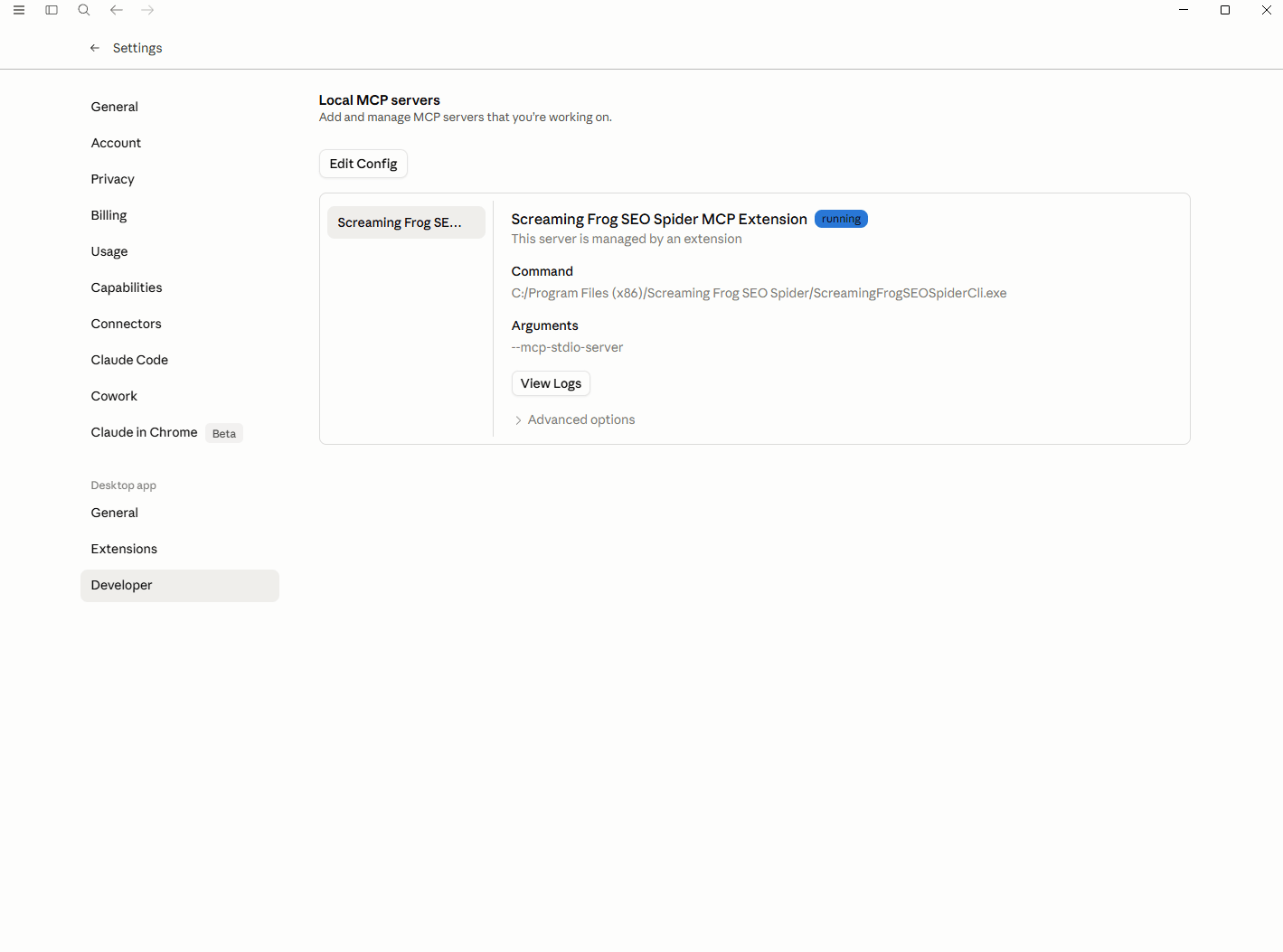
You should be able to interact directly with the SEO Spider via the MCP.
Streamable HTTP Server Mode Setup
You need to enable node.js, start the MCP server and install the MCP extension to use Claude desktop in Streamable mode.
1) Start MCP Server & Enable Node.js
Click ‘File > Settings > MCP Server’. There are two settings that require configuration –
- Start MCP Server – In this mode, you are required to activate the MCP Server in the SEO Spider by clicking ‘Start MCP Server’.
- Accept Node.js RE – You will need to accept and enable the Node.js runtime environment to use the SEO Spider MCP. The node.js setting allows the LLM to install any required Node packages on demand and execute custom node.js scripts to manage and manipulate data. As they are built in and self contained, additional servers are not required for scripting or file access.
When ‘Start MCP Server’ has been activated, a ‘MCP Server Active’ message will appear in the bottom left hand corner of the UI.
2) Install Node.js
The Streamable MCP extension below works by running a Node.js shim, so this is a requirement to install the extension in the next step.
3) Install the MCP Extension
Download the Streamable MCP extension via the button below.
Download Streamable MCP Extension
When you have downloaded the MCP extension, open up Claude Desktop, navigate to ‘Settings > Extensions’ and click ‘Advanced Settings’.
Then click on ‘Install Extension’, and select the downloaded ‘spider-mcp.mcpb’ file.
When selected, click ‘Install’.
The SEO Spider MCP will then be installed.
Note: The spider-streamable-mcp.mcpb file assumes the SEO Spider is installed in the default location (C:\Program Files (x86)\ on Windows or /Applications/ on macOS). If you installed it elsewhere, you will need to edit this file to reflect your custom path.
After configuring, please close Claude. Ensure it’s closed either via the tray icon, or via Task Manager – or it will continue to run in the background.
Windows note: To terminate the Claude app on Windows, you need to close it from the system tray (bottom right corner of your screen) and not just by closing the application window. Simply closing the window will leave the app running in the background and also the Spider MCP server. To properly close it, right-click the Claude icon in the system tray and select “Quit”.
Now open Claude desktop. Under ‘Settings > Developer’, the extension should be visible with a message to show it is running.
You should be able to interact directly with the SEO Spider via the MCP.
LM Studio Setup
To add the SEO Spider as an MCP server to LM Studio do the following:
- Select the ‘Developer’ icon in the left-hand side navigation.
- Select the ‘Local Server’ tab.
- Click the ‘mcp.json’ button in the top central section.
Add the “screaming-frog-mcp-server” section to the “mcpServers” and click ‘Save’:
{

  "mcpServers": {

    "screaming-frog-mcp-server": {

      "url": "http://localhost:11435/mcp"

    }

  }

}
Exit the dialog and toggle the ‘Status:Stopped’ button, so it says ‘Status: Running’.
Now restart the app, head to the chat and pick a model. Click the ‘Tool’ icon in the bottom right and toggle ‘mcp/screaming-frog-mcp-server’ to enabled.
You should be able to interact directly with the SEO Spider via the MCP.
Hardware Considerations For Local Models
Local model performance depends heavily on your hardware. For example:
- A MacBook Pro with 64 GB unified memory can run models up to around 40GB.
- Systems with smaller GPUs or less memory may require experimentation to find a suitable model.
In general:
- Claude will perform better than a local model.
- Larger local models perform better than smaller local models, especially for complex prompts.
- Thinking/reasoning models tend to give higher-quality results.
- Models must support tool calling to work with the MCP server.
Security Considerations
Allowing LLMs to run arbitrary scripts introduces inherent security risks but at the same time unlocks great power.
We have attempted to mitigate as many risks as we can, however, only grant permission if you fully trust the LLM.
Context Window and Data Volume
It is easy for an LLM to exceed its context window when generating large reports or working with extensive crawl data. This was a key reason for adding the ability of the LLM to:
- Save reports directly to files.
- Generate Node.js scripts to process data externally.
In general, it is best to start a new chat for every job you want to do to save accumulating redundant conversations in the context window.
Evolving Ecosystem and Feedback
The MCP ecosystem is evolving rapidly. The current set of tools represents an initial attempt to identify what might be useful, but real-world testing will show if there are limitations.
As more users begin integrating the SEO Spider MCP Server into agentic workflows, we expect that:
- New requirements will emerge.
- Existing tools will need refinement.
- Additional capabilities will likely be requested.
We look forward to user suggestions and feedback as to how we can improve the SEO Spider MCP.
Example Prompts
At the outset, it is worth reiterating our stance on AI – We do not recommend using AI to replace an experienced SEO professional.
We recommend using AI to improve efficiency of tasks and workflows like any other tool.
An experienced SEO professional should always analyse, review and interpret crawl data into appropriate prioritised actions relevant to each unique business, website and objectives.
Here are some examples for prompts.
API
This is how the LLM interacts with the SEO Spider. Some AI software, such as LM Studio, allows you to see the tool calls as they happen. Thinking models will show the thinking output allowing you to see the reasoning about which tool was called to achieve the prompt’s goal. Monitoring this is a good way to see if the Spider is supplying expected descriptions and error messages to the LLM.
sf_list_crawls
Retrieves a list of recent web crawl jobs, ordered chronologically with the most recent first. By default, it returns the 10 latest crawls, providing a snapshot of recent activity and status.
sf_load_crawl
Loads a crawl into the SEO Spider application
sf_export_crawl
Export the currently loaded crawl
sf_crawl
Starts a crawl with optional config
sf_pause_crawl
Pauses a running crawl
sf_resume_crawl
Resumes a paused crawl
sf_clear_crawl
Clear a paused crawl
sf_crawl_progress
Get the progress of a running crawl
sf_generate_report
Generates a report for the requested category. Use the sf_list_available_reports tool to get a list of all available reports.
sf_generate_bulk_export
Generates a bulk export for the requested category. Use the sf_list_available_bulk_exports tool to get a list of all available bulk exports.
Enums: CSV, NDJSON
sf_bulk_export_page_content
Bulk-exports page content for all crawled HTML URLs in NDJSON format
Enums: RAW_HTML, VISIBLE_TEXT
sf_export_seo_element_urls
Export URLs and associated data for a specific SEO element name and filter. The export format is NDJSON. Fields with value null mean the information is unavailable. Do not guess or infer missing values. Call the sf_list_available_filters_for_seo_element tool to get the list of available filter names
Enums: RAW_HTML, VISIBLE_TEXT
sf_export_embeddings
Generates a CSV file with the URL and embeddings
sf_get_url_screenshot
Get the stored screenshot of the web page for the URL. If a file path is supplied will save the image to that file. If no file path is supplied will return the base64 encoded image string.
sf_url_info
Generates a JSON report with information on the supplied URL
sf_url_content
Get the content of a specific URL in the loaded crawl
- If the URL is an image, generates base64 encoded image content.
- If the URL has HTML content type, generates the text content of the URL.
sf_url_links
Lists all of the URL inlinks or outlinks depending on the links_direction argument.
sf_open_url_in_browser
Opens the URL or absolute file path in an external browser
sf_list_available_reports
Lists all available reports
sf_list_available_bulk_exports
Lists all available bulk exports
sf_list_available_filters_for_seo_element
List the available filters for the supplied seo element name
sf_list_available_data_fields_for_seo_element_and_filter
List the available data fields for the supplied seo element name and filter type
sf_run_node_js_script
Runs the node.js script with the supplied optional arguments
sf_npm_install
Executes npm install to install a specific package.
sf_read_text_file
Read the contents of a text file.
sf_write_text_file
Writes UTF-8 content to a text file. Caution, will overwrite existing files without warning
sf_list_allowed_base_directory
Returns the allowed base directory that this server can access for reading and writing files. Subdirectories within this directory are also accessible. Use this to understand which directory and its nested paths are available before trying to access files.
sf_list_directories
Get a detailed listing of all files and directories in a specified relative path. Results clearly distinguish between files and directories with [FILE] and [DIR] prefixes. This tool is essential for understanding directory structure and finding specific files within a directory. Only works within allowed directories.
sf_create_directory
Create a new directory or ensure a directory exists. Can create multiple nested directories in one operation. If the directory already exists, this operation will succeed silently. Perfect for setting up directory structures for projects or ensuring required paths exist. Only works within allowed directories.